Author Release 53

New Activity Type Upload, Enhanced Media Editing and Smarter Content Creation

Avallain Author Release 53 introduces new activity options, smarter default settings, refreshed editor tools and accessibility improvements designed to make course creation smoother and learning more engaging.

New Activity Type Upload

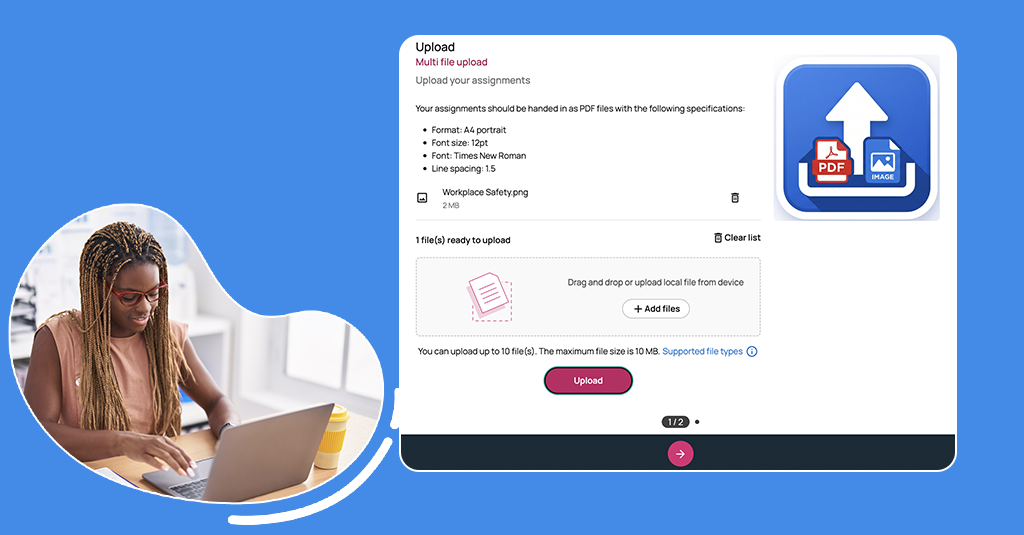
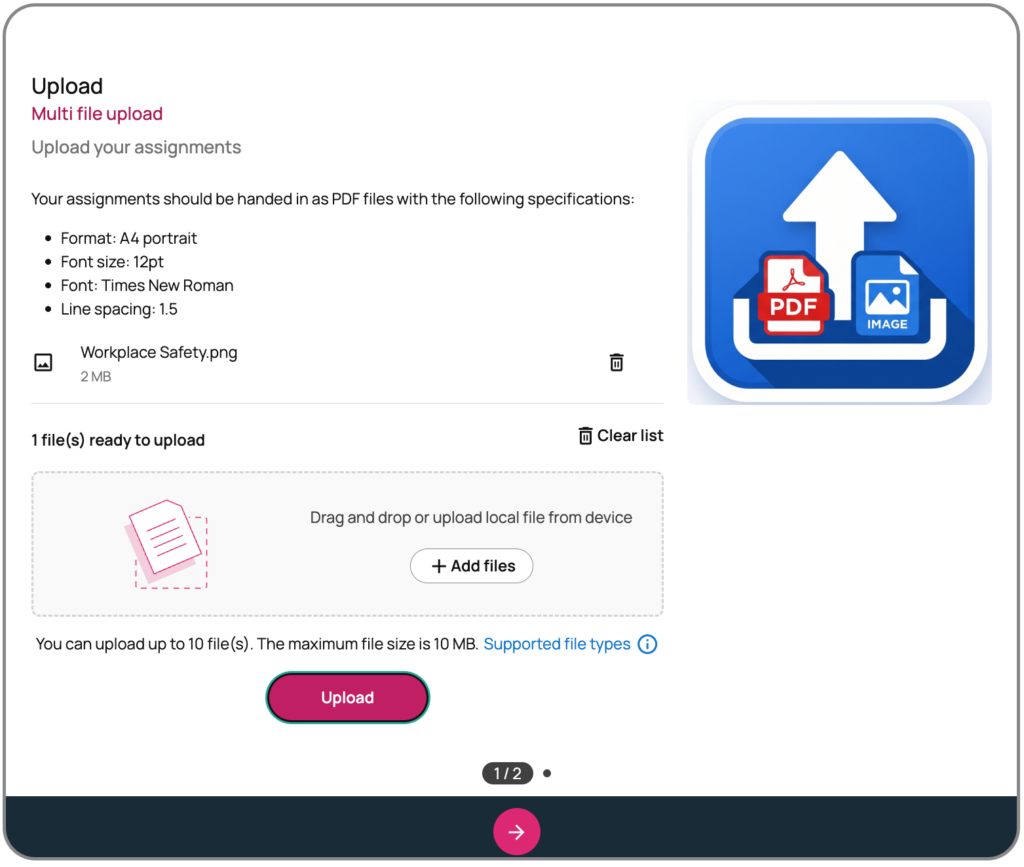
Content creators can now create dedicated File Upload tasks where learners can submit work directly into an activity.

  • Flexible Submissions: Learners can upload single or multiple files, from 5MB up to 50MB each.
  • Easy File Selection: Learners can drag and drop files on a computer, or choose documents, photos or video on mobile devices.
  • Built-in Guidance: Clear file lists, upload progress bars, file validation and helpful error messages are provided if files exceed size or format limits.
Introduction of new Global Options and rebranding of legacy settings

Content creators now have total freedom over what happens when a student checks their answers or submits a task.

Check Answers Display has been renamed to Validation Display, and its responsibilities have been split into three independent settings, giving finer control over validation marks and scoring dialogs for both Check Answers and Show Submit.

What changed

  • Validation Display (formerly Check Answers Display): Controls only whether validation marks appear after a learner uses Check Answers or Show Submit. Values: Marking / None.
  • Check Answers Feedback (new): Controls whether the scoring dialog appears when Check Answers is used. Values: Feedback / None.
  • Show Submit Feedback (new): Controls whether the scoring dialog appears when Show Submit is used. Values: Feedback / None.

Previously, one setting bundled validation-mark visibility and scoring-dialog behaviour together and only applied to Check Answers. This update separates these two behaviours and extends control to Show Submit as well.

Existing content is migrated automatically, with no action required.

Subtitle, Transcript and Audio/Video Editing Upgrades

Managing media transcripts and captions is now much faster and more intuitive:

  • AI-Powered Tools: Automatically generate, import, export and edit transcripts and subtitles directly within the Media Library.
  • Seamless Formats: Automatic conversion between common subtitle formats (SRT and VTT) without losing data.
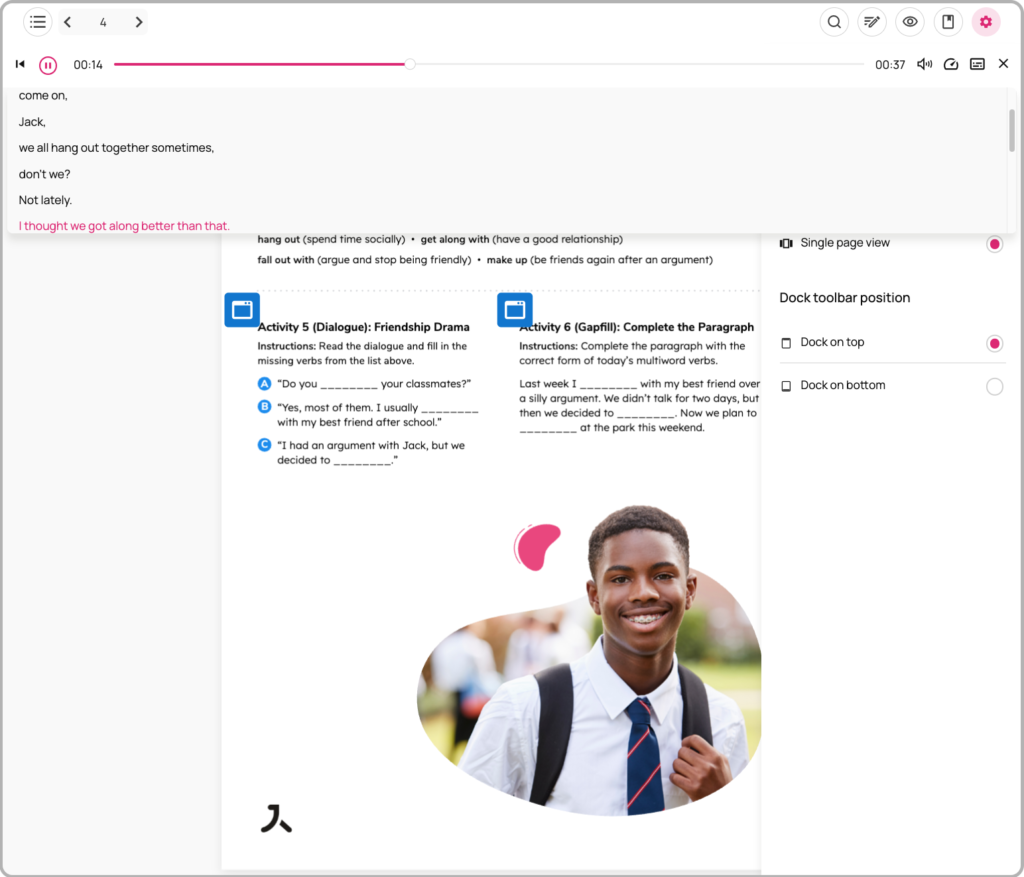
  • Visual Sound Waveform: An interactive waveform timeline lets you zoom in, jump to specific audio moments, adjust playback speeds from 0.5x to 3x, and adjust caption timing with great accuracy.

Productivity and Content Creation Enhancements

Preset Templates and Default Settings

  • Project Attachment Templates: Set default styles, sizes, placements and link behaviours for attachments at the project level so new items automatically stay on-brand.
  • Activity Defaults: Predefine standard options—such as enumeration, attempt limits and feedback levels—across entire activity types to save repetitive setup time.

Enhanced Bookmaker Text Editor

The rich text editor within the Text dialogue hotspot has been updated for consistency with the editor used in the Media Library Long Description area. While maintaining all existing functionality, several new enhancements have been introduced:

  • Insert emojis and highlight text in custom colours.
  • Insert a horizontal line divider.
  • Insert images directly from your Media Library, with optional accessibility descriptions.
  • The Code view option has been renamed HTML view.

Improved Media display, Card layout and Book Annotation Tools

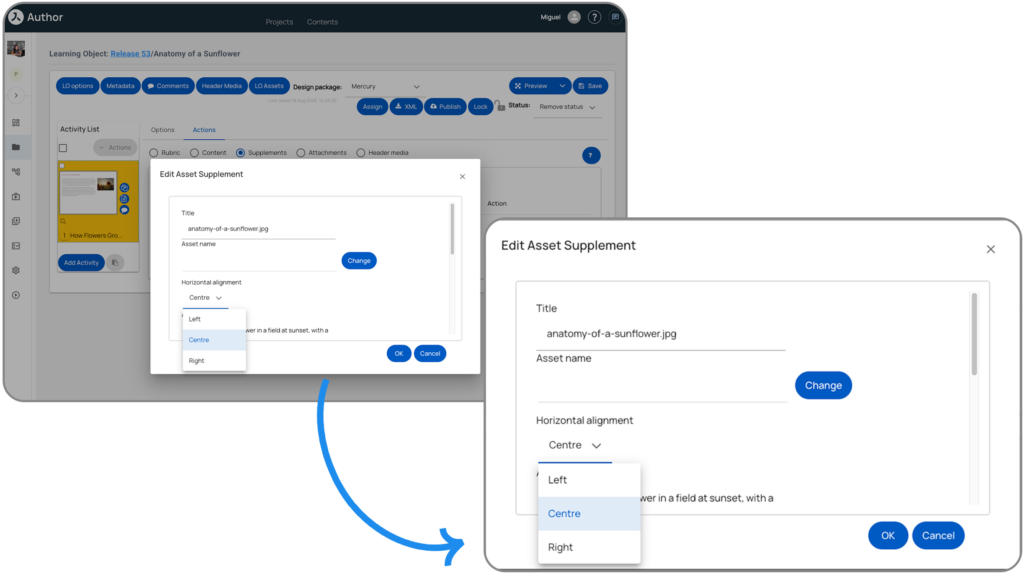
  • Media alignment in Supplements: Supporting images, audio and video can now be aligned to the Left, Center or Right of the screen.
  • Smarter Memory & Flashcards: Memory card games (Pelmanism) and flashcard sets now scale intelligently across screen sizes, preventing awkward scrolling and keeping cards neatly balanced in rows.
  • Straight Line Tool: A straight line drawing tool has been added to digital book annotation toolbars in Mercury Book.
Accessibility and Navigation Improvements

This release includes major accessibility updates for screen readers and keyboard users:

  • Screen Readers: Better announcements for dialogue controls, interactive matching tiles, question texts and audio player buttons.
  • Countdown Timers: Screen readers now announce key time warnings at 5 minutes, 1 minute and 30 seconds remaining.
  • Keyboard Navigation: Digital book pages, toolbar menus, speed controls and erasure of drawn lines can now be fully operated using a keyboard.

Publishing and Asset Visibility Updates

  • Clear Read-Only Indicators: Editors viewing assets uploaded by team members will clearly see read-only badges if they lack edit permissions, preventing unsaved work.
  • Clearer Publishing Status Reports: If a specific learning item encounters an issue during course publishing, the system provides clear status alerts and directs you to a detailed report.

Watch the webinar recording

Learn more about this release’s new features by watching the recording of the webinar held by our in-house experts.

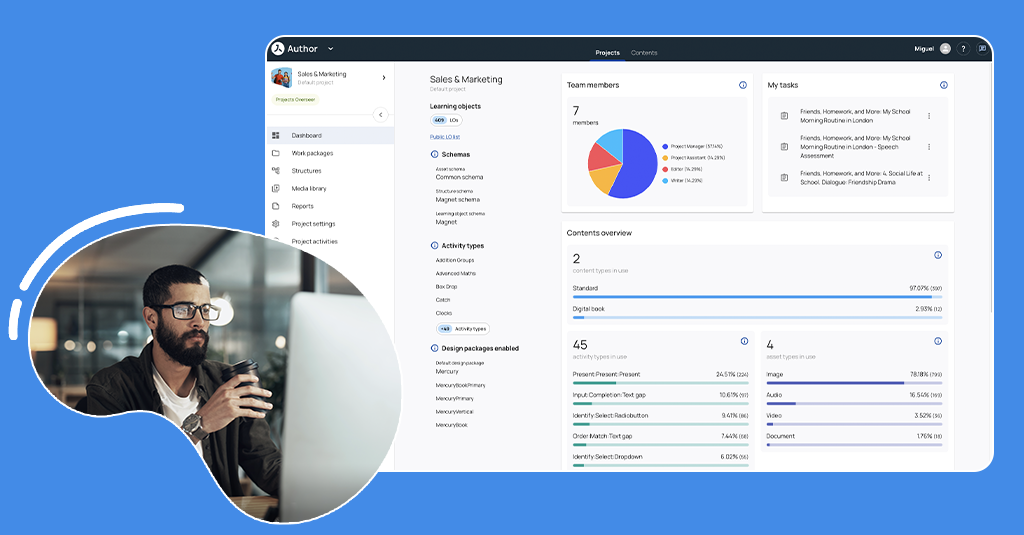
Image not found

Author Release 52

Accessibility Improvements, Easier Content Editing and an Updated User Interface

Accessibility

Avallain Author Release 52 includes accessibility improvements to multiple Activity Classes. Most of those improvements are under the hood and relate to keyboard navigation, aria labels etc., mostly notable only when using a screen reader.

Option: Gapfill Behaviour

The following Activity Classes now allow using the keyboard to select and place drag items even if the option Gapfill Behaviour has been set to “Drag”:

  1. Order:Match Gap
  2. Order Text Gap (Label an Object)
  3. Order:Sequence
  4. Order:Match
  5. Order:Sort

This gives content creators the flexibility to use simple drag and drop while not compromising on accessibility.

Accessibility improvement in Mercury Design Pack

To further improve accessibility for Activity Classes that rely on colour or motion as part of the learner interaction, the Mercury Design Pack now includes toggles to aid learners with visual or motor impairments.

The gamified Activity Types Catch and Box Drop have a toggle to disable the motion. Learners with motor impairments can now use this toggle to halt movement of items on the screen and use the keyboard to place the drag items or, in the case of Catch, select the items representing correct answers.

Colouring activities now have a Colourblindness mode toggle that associates numbers with the different colours thereby allowing learners with visual impairments to solve the activity by relying both on the colours and their associated numbers.

The Activity Type Hangman has been improved to not solely rely on colour to mark correct and incorrect letter selections. Instead, selected letters are replaced with a cross or tick mark and incorrect letters are listed below the letter selector.

Note: These changes are only available in the Mercury Design Packs. Other design packs can choose to implement these accessibility improvements differently.

Backend

LO Editor

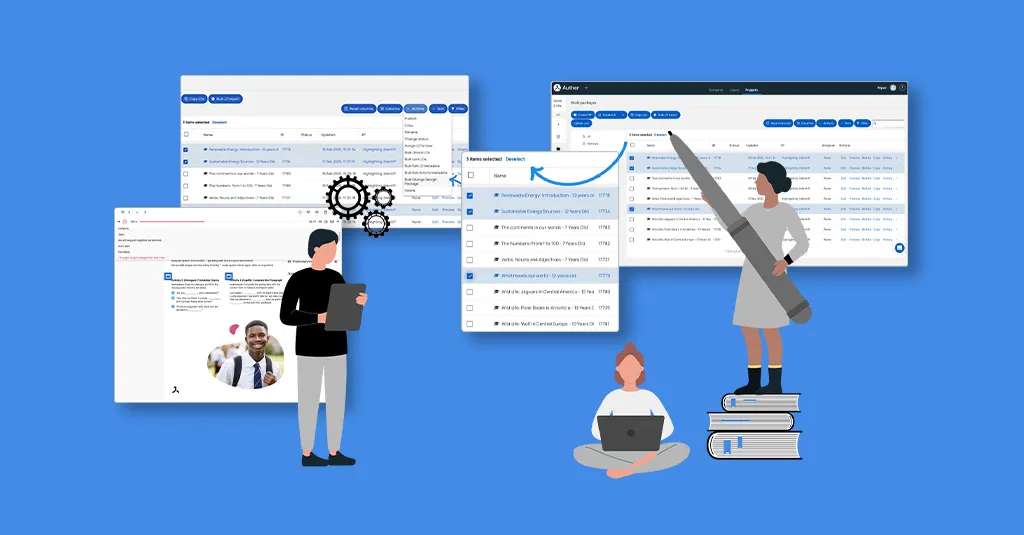
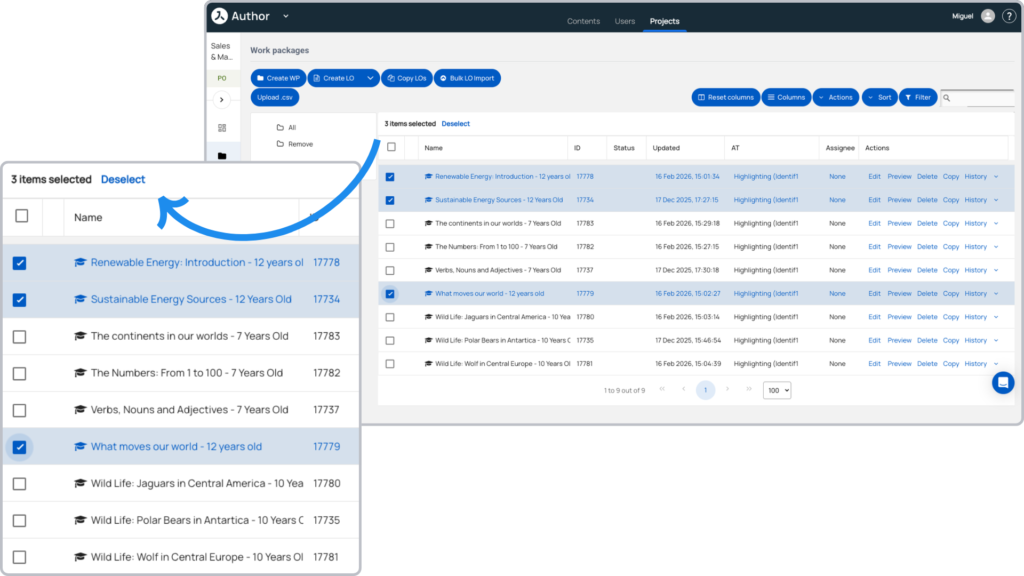
Working with activities in the LO Editor has been made easier in Release 52. You can now copy, paste and delete multiple activities at the same time. This allows content creators to copy two or more activities from one LO to another or to delete multiple activities at the same time.

Image: Selecting multiple activities for copy or delete

The User Interface

The User Interface has been updated and improved in many parts of Author including:

  • Admin: Users, Metadata Schemas, Content Profiles
  • The Projects & Contents pages
  • The Dashboard
  • The Media Library
  • Structures
  • Products
  • The Work Packages side panel
  • LO Edit: LO/Activity Metadata and Header Media windows

Full Asset Report: Improvements

The Full Asset Report is now both more informative and easier to read.

  • In the Area columns, labels have replaced numerals: Rubric, Contents, Supplements, Attachments, Header, LO Options, Options
  • The order of the columns is now: Asset ID – Filename – Learning Object – Screen – Area – AltText – Transcript – Subtitle – Accessibility
  • ALT Texts, Transcripts and Subtitles are restricted to only 2 rows followed by “…”
  • Assets in the Recorder syntax and Options are now reported

Engine

The Player

Audio playback behavior in Flashcards and Memory Cards

In Flashcards and Memory Cards, if an audio is playing (whether triggered manually or by autoplay), the audio playback should now stop when:

  • The card is flipped
  • Another card is flipped
  • Another audio starts playing (whether triggered manually or by autoplay)

Audios in Crossword clues

Audios are now supported inside syntax as clues in Crossword activities.

Background images – More flexibility

Previously, background images were always centered by default. This caused inconsistent cropping across different screen sizes and responsive breakpoints.

A set of new classes has been added to allow authors to control image size, alignment, and scroll behavior more precisely.

Image: Positioning of background images

Note: As a general rule, background images will move together with the content above them during scrolling. But when using bgimg-repeat-fix, the background image will remain fixed at its starting position with the content scrolling above it.

Please contact Customer Success for detailed information.

Mercury Design Pack

The entire Mercury family of Design Packs has been updated for Release 52. This includes the accessibility improvements mentioned above but other updates have been implemented as well.

  • Font appearance in attachments has been updated to better match text elsewhere
  • The default link to an attachment is now in the top right corner of the LO
  • Videoplayers now always have rounded corners
  • Mercury Primary now supports the Activity Type Slideshow
  • The loading indicator for Digital Books now better indicates that loading is still in progress and interaction with the Digital Book is not yet possible
  • Digital Books can now also display a sidebar for a dedicated chatbot on supporting platforms.

Watch the webinar recording

Learn more about this release’s new features by watching the recording of the webinar held by our in-house experts.
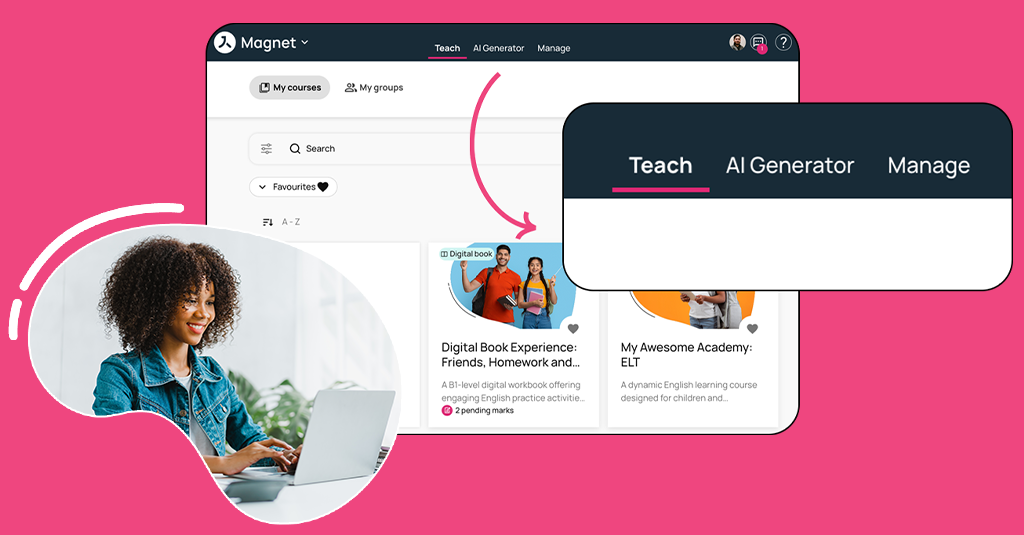
Image not found

Magnet Release 42

A new navigation experience, expanded OTP support and greater flexibility in user registration

Avallain Magnet Release 42 introduces a redesigned navigation experience for Teachers and Teacher-Admins, alongside new options that give institutions greater flexibility when managing student access and user registration.

New navigation for Teachers and Teacher-Admins

Avallain Magnet Release 42 introduces the first phase of a redesigned navigation experience for Teachers and Teacher-Admins.

As Magnet continues to grow in functionality, the new information architecture reorganises existing pages to provide clearer access to teaching and administrative features while maintaining a simple and intuitive user journey.

Two new top-level tabs, Teach and Manage, are now available. Teach brings together day-to-day teaching activities through My Courses and My Groups, while Manage provides access to administrative and organisational features such as Users and the new Groups management view.

The Dashboard is no longer displayed as a top-level tab and can now be accessed by clicking the institutional logo in the header. For institutions with AI Generators enabled, the AI Generators tab remains available in the top menu.

No features have been removed as part of this change; existing pages and functionality have been reorganised under the new navigation structure.

To help Teachers and Teacher-Admins become familiar with the changes, dedicated Customer Documentation is available with an overview of the new navigation, where existing pages can now be found and what is included in this first phase.

Smarter subscription management

Gain greater control and visibility when managing subscriptions with new capabilities for subscription naming, redemption history and bulk deletion.

ORG Admins can now add names to institutional subscriptions, making them easier to identify, search and manage. A new Redemption History provides greater traceability by recording token redemption events, including when a token was redeemed, the action performed and the user who redeemed it. ORG Admins can also select and delete multiple eligible subscriptions at once, making it easier to manage larger volumes of subscriptions.

Date of birth setting for user registration

Institutions can now configure Date of Birth as part of the user registration process.

The setting can be enabled as a requirement during self-registration for Teachers and Students, and Date of Birth can also be included as an information field when creating individual users from the Web or Administration user pages, regardless of role.

This gives each institution the flexibility to configure the setting according to its own legal requirements.

Date of Birth is not currently supported as part of the bulk user upload or CSV creation process.

Watch the webinar recording

Learn more about this release’s new features by watching the recording of the webinar held by our in-house experts.
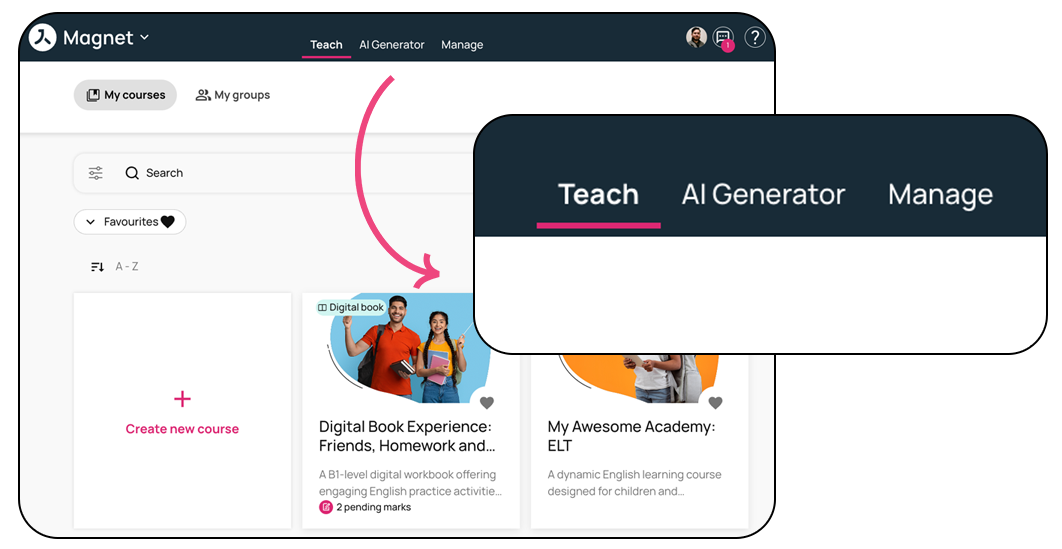
Image not found

Magnet Release 41

Avallain Magnet Release 41: Streamlined Student Onboarding, Greater Password Control and Calendar Improvements

Avallain Magnet Release 41 introduces new features designed to streamline student onboarding, provide institutions with greater control over password security and improve the calendar experience.

Temporary password for bulk creation of preactivated Students

Streamline student onboarding for institutions with Activated Students enabled.

Teacher Admins can now optionally set a temporary password when bulk creating students with usernames via CSV upload. This provides greater flexibility when preparing student accounts in bulk and helps simplify the process of getting students ready to access Magnet.

When the password of an Activated Student with a username is reset by a Teacher or Teacher Admin, Magnet now also displays the new temporary password directly in a dialogue. The temporary password continues to be sent to Teachers by email.

Password rules setting

Gain greater control over password security with configurable password rules at institution level.

Password requirements can be tailored to different user roles, including Students, Teachers, Teacher Admins and ORG Admins. For Students, institutions can select from Low, Medium and Strong password rules, while Teachers, Teacher Admins and ORG Admins can use Medium or Strong rules.

The selected rules apply when creating new passwords, changing or resetting passwords, and when working with temporary passwords for Activated Students with usernames. Existing users can continue to log in with passwords created before the configuration is changed.

Calendar Improvements

Boost productivity with a range of functional and UI enhancements to the Magnet calendar.

The calendar can now be accessed directly from the avatar dropdown menu, making it easier for users to reach from anywhere in Magnet.

A new Week view provides a detailed overview of scheduled events throughout the week, while the new Year view offers a broader view of the calendar across the year.

For institutions using the Academic Calendar, the Year view also displays academic terms and non-instructional dates, providing additional context when reviewing the academic year.

Watch the webinar recording

Learn more about this release’s new features by watching the recording of the webinar held by our in-house experts.
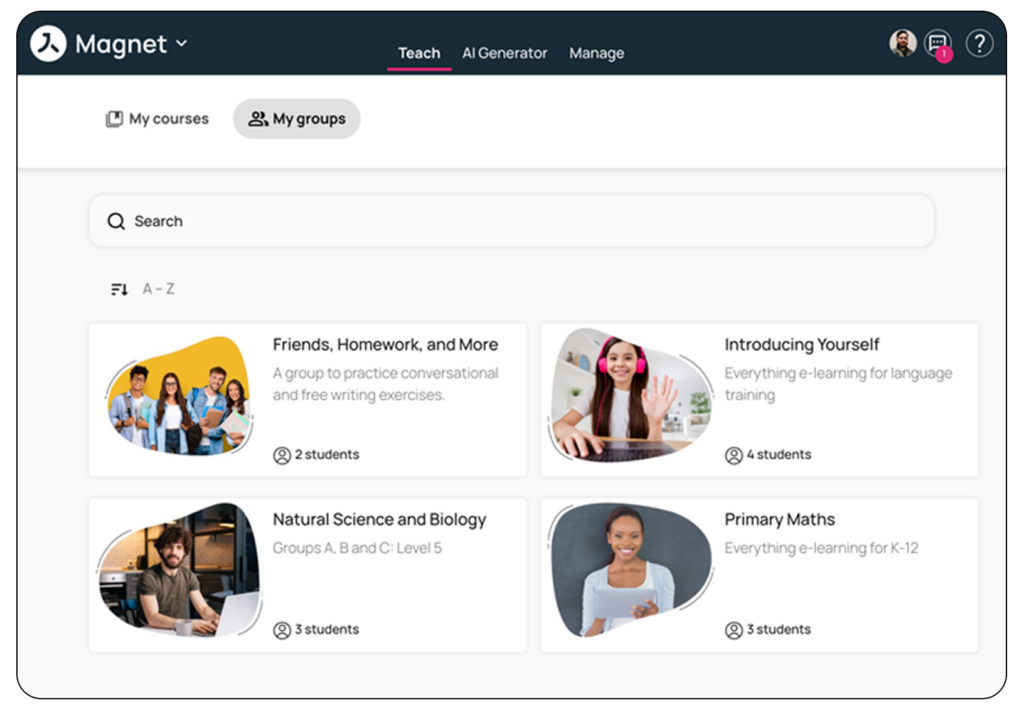
Image not found

Magnet Release 40

Improved SSO flexibility, greater organisation-level control and a more consistent student experience

Avallain Magnet Release 40 introduces improvements to Single Sign-On (SSO), new organisation-level controls and updates to the student experience, providing greater flexibility and consistency across the platform.

SSO improvements

Avallain Magnet Release 40 introduces improvements to Magnet Single Sign-On (SSO) support, increasing flexibility when integrating the platform with external identity providers.

Customers can integrate Avallain Magnet with external SSO providers that follow the OpenID Connect (OIDC) protocol, strengthening compatibility with a wider range of authentication solutions.

These changes are backwards compatible and form part of ongoing SSO improvements across Avallain Magnet and the Magnet mobile app.

Customers using Microsoft Teams SSO will need to make small adjustments to their account setup prior to the release.

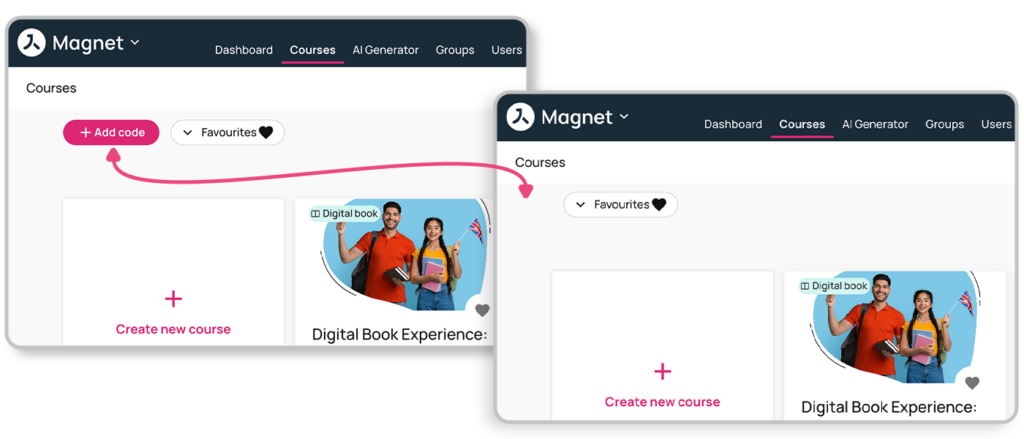
ORG setting to control the “Add a code” button

ORG Admins now have greater control over how the “Add a code” functionality is made available to users within their organisation.

Previously, the “Add a code” button was a core Avallain Magnet feature and could not be turned off. Release 40 introduces a new organisation-level setting that allows its visibility to be controlled by user role.

The setting is available to ORG Admin and ORG Owner users and is enabled by default, with all role toggles initially switched on.

Student task component updates

Avallain Magnet Release 40 introduces an update to ensure that student task actions respect the course-level settings configured by customers.

Previously, students could potentially access a course through the “Task” pop-up even when the relevant student course buttons had deliberately been disabled at course level.

With this update, task actions now follow the existing Student course buttons setting. When course access has been disabled through this setting, students will no longer be able to use the affected “New course” and “Resume course” task actions as an alternative way to access the course.

This creates more consistent behaviour between course-level settings and the actions available to students through their tasks.

Watch the webinar recording

Learn more about this release’s new features by watching the recording of the webinar held by our in-house experts.
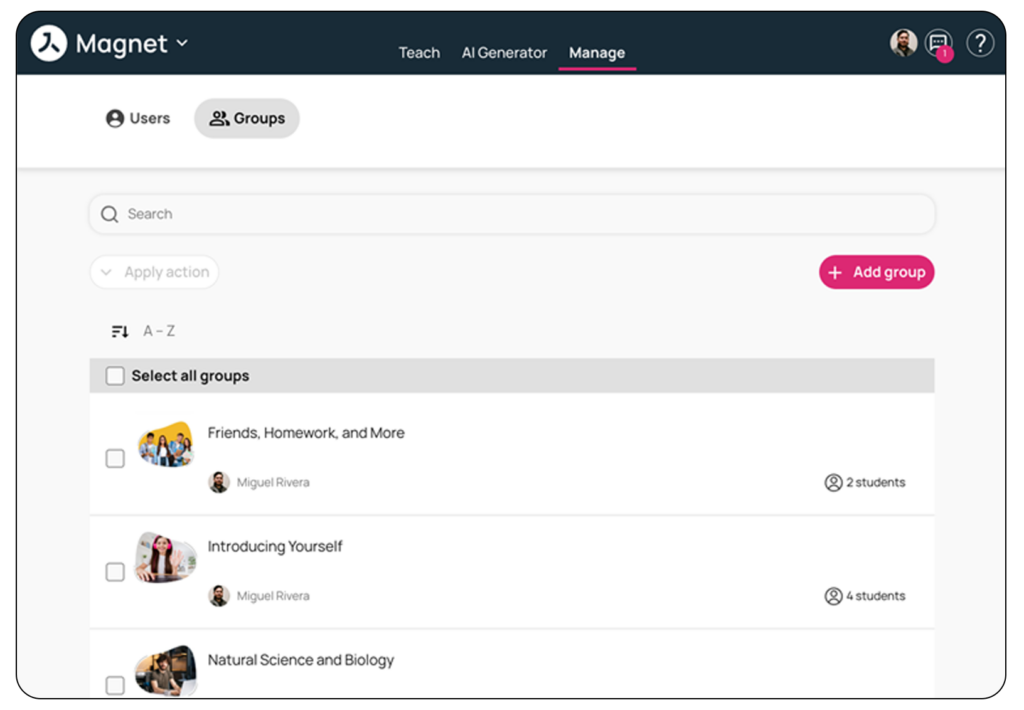
Image not found

Magnet Release 39

Greater flexibility across institutions and enhanced organisational control

Avallain Magnet Release 39 introduces new features that give organisations greater flexibility when managing multiple institutions, alongside new configuration options that allow ORG Admins to further tailor the platform experience for their users.

The release focuses on simplifying institution management, providing more control over course information and support resources, and enhancing the experience for organisations using branded mobile applications.

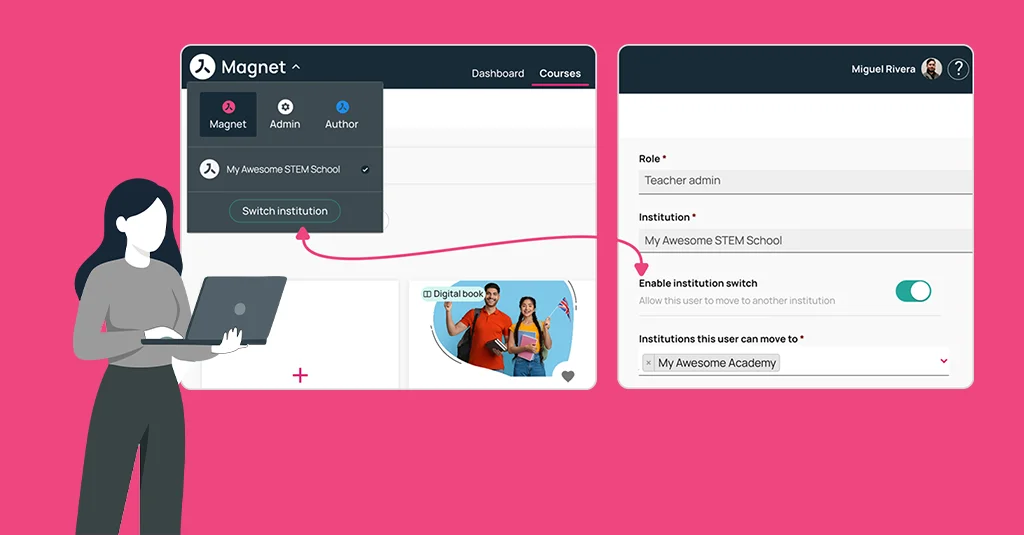
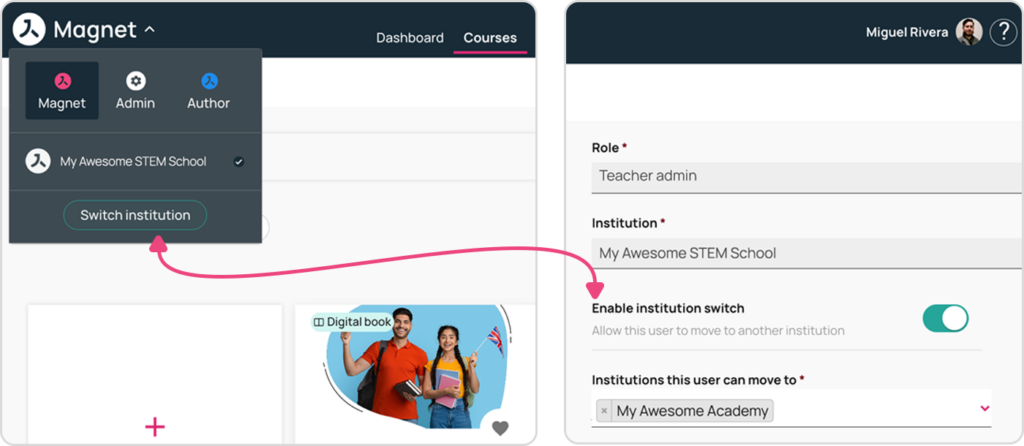
Institution switcher

Managing multiple institutions within the same organisation is now more efficient with the introduction of the Institution Switcher.

ORG Admins and Teacher Admins can now move between institutions they have access to without requiring separate accounts or complex administrative processes. Users continue to belong to only one institution at a time, ensuring clear institutional ownership while enabling greater flexibility across the organisation.

This feature streamlines administration for organisations operating multiple institutions and helps users work more efficiently across their assigned environments.

Student and Teacher migrations across institutions

ORG Admins can now migrate Students and Teachers from one institution to another within the same organisation directly from Magnet Administration.

This capability simplifies user management when organisational structures change or when users need to be reassigned between institutions. The migration process helps administrators maintain accurate user distribution across institutions while reducing manual administration.

New setting to customise course expiration date

Organisations now have greater control over how course expiration information is presented to users.

A new ORG-level setting allows ORG Admins to decide whether course expiration dates are displayed on course cards and course pages, and to manage when this information is shown.

This flexibility helps organisations align the user experience with their specific course delivery and communication requirements.

Organisations can now replace the default Magnet User Guide with their own support documentation.

Using a new ORG-level setting, ORG Admins can configure a custom User Guide link for users with Teacher Admin, Teacher and Student roles when accessing Magnet via the web platform.

This allows organisations to provide users with support resources tailored to their own processes, workflows and learning environments.

Branded mobile app Go to Store screen

The Go to Store screen has been enhanced for organisations using a branded mobile application.

The screen now includes a neutral illustration, while the primary Go to Store button automatically adopts the organisation’s configured primary colour. This helps create a more consistent branded experience while maintaining a clean and intuitive interface for users.

Watch the webinar recording

Learn more about this release’s new features by watching the recording of the webinar held by our in-house experts.

Image not found

Author Release 51

Avallain Author Release 51: Greater Efficiency, Smarter Workflows and Enhanced Accessibility.

Backend

Work Packages Screen

The Work Packages screen in Avallain Author Release 51 introduces practical improvements designed to streamline daily workflows.

Selection Counter

When selecting LOs on the Work Packages screen, a counter above the list clearly displays the number of selected LOs. You can select LOs from multiple Work Packages, making large-scale actions faster and more transparent.

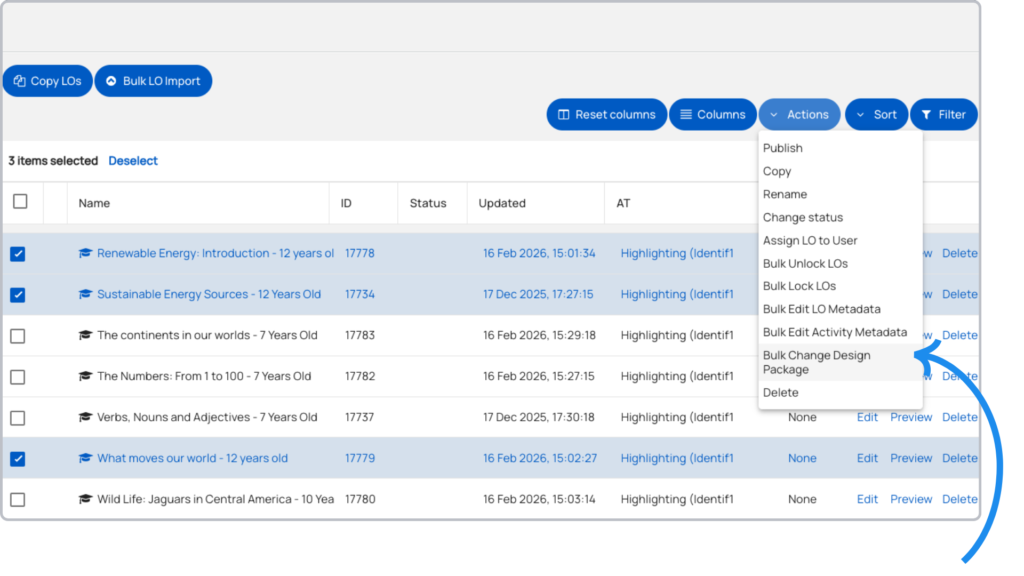
Bulk Change Design Package

A powerful new action has been added to the Actions menu. It allows you to change the Design Package for a selection of LOs at the same time, significantly reducing repetitive manual work.

Note: If your selection contains both Digital Books and regular LOs, the action will be greyed out. If your selection contains only regular LOs, you will only be able to choose from regular Design Packages. If it contains only books, you will only be able to choose from book Design Packages.

Product Types

Tabbed Layout

The page for editing Product Types in Avallain Author Release 51 has been redesigned as a tabbed interface similar to Project Settings, providing a more structured and intuitive experience.

The familiar layout and placement of options and settings, combined with the reduced need for scrolling, improve the handling of Product Types and support more efficient configuration.

Layouts

In previous versions of Avallain Author, the layout selection widget/carousel used to assign layouts to Activity Types displayed a list of Design Packs as well as a list of layouts. This gave the impression that some layouts could be enabled or disabled depending on the selected Design Package.

However, layouts are referenced by name independently of the selected Design Package. In other words, if a layout called “layout_01b” has been selected for the Activity Type, that layout will be selected for all Design Packages that contain a layout with that name.

To simplify and accelerate the selection process, the new widget in Avallain Author Release 51 no longer includes a Design Package selector. Instead, the widget lists all unique layout names from all Design Packages enabled in the current project. Removing duplicated layout names from the selection considerably reduces the size of the list and speeds up the selection process, resulting in a cleaner and more efficient workflow.

Project Import

The Project Import functionality in Avallain Author can be used to create a project with the same settings and or LOs in the same or a different Author instance. Project Import was significantly improved in Avallain Author Release 50. Avallain Author Release 51 introduces further targeted enhancements.

  • Project export and import now support structures – these were previously not included in the scope of the Project Import functionality, increasing consistency between projects.
  • When attempting to import a project containing Media Library assets with duplicate names, the import will fail with an error message. Users must remove the duplicate assets in the source library and export and import again, ensuring greater asset integrity.
  • Restrictions regarding the Activity Types available in the destination project have been eased. The destination project now only needs to include those Activity Types that are actually used in the LOs of the source project (rather than all the Activity Types listed in the Project Settings), providing greater flexibility during migration.

Project Settings

To avoid excessively long lists and improve usability, the Design Packages selector in the Design Packages tab has been converted into a widget similar to the one used for selecting project team members.

When launched, the widget contains two panels. The left panel shows the available Design Packages and the right panel lists the selected Design Packages. Select Design Packages and use the buttons between the two panels to move Design Packages from the full list to the selected list and vice versa (or drag and drop), enabling clearer overview and control.

To set the default Design Package, use the dropdown menu below the selection widget. This menu replaces the radio button previously used for the same purpose and offers a more consistent interaction pattern.

Reports

The Full Project Report in Avallain Author Release 51 has been enhanced with an additional column that lists the contents of the Supplements area, including any assets. Assets are also listed for each LO area such as Rubric, Content or Attachments. A complete list of assets in the LO remains available in a separate column.

This means that, in addition to the comprehensive list for the LO, you can now clearly see the location of the assets in each screen, supporting more precise review and quality assurance processes.

Supplements

Avallain Author Release 51 removes the Description field from supplement objects. It was never used to display information to the learner. This refinement contributes to a cleaner and more focused authoring interface.

Warning Dialogues

When attempting to delete a Product Type, Master Activity Type, Publishing Group, Design Package, Publishing Type, Setting or Option, Avallain Author previously used a browser alert dialogue.

Such dialogues are not very accessible and some browsers allow users to block them altogether. To ensure that all users can confirm the deletion of an element in Avallain Author, these browser dialogues have been replaced with a standard Avallain Author notification dialogue, improving accessibility and reliability.

Digital Books

Avallain Author Release 51 delivers further accessibility improvements for Digital Books, including support for transcripts when using audio hotspots in toolbar mode and improved support for the Arabic user interface.

Support for printing page annotations has also been added, extending the practical usability of Digital Books.

Options

Check Answers Display: None

The new option value None for Check Answers Display allows content creators to prevent any feedback from being given to the learner. Validation takes place after the learner clicks Check Answers, but answers are not marked as correct, incorrect or missing and no scoring information is shown.

The new option value is implemented for 28 Activity Types. See the User Guide for a complete list.

Watch the webinar recording

Learn more about this release’s new features by watching the recording of the webinar held by our in-house experts.
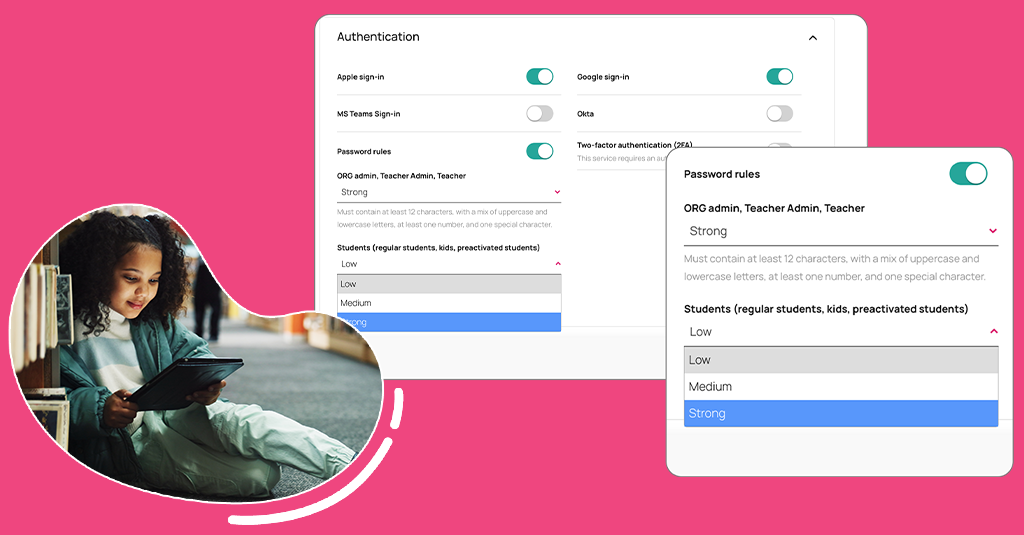
Image not found

Magnet Release 38

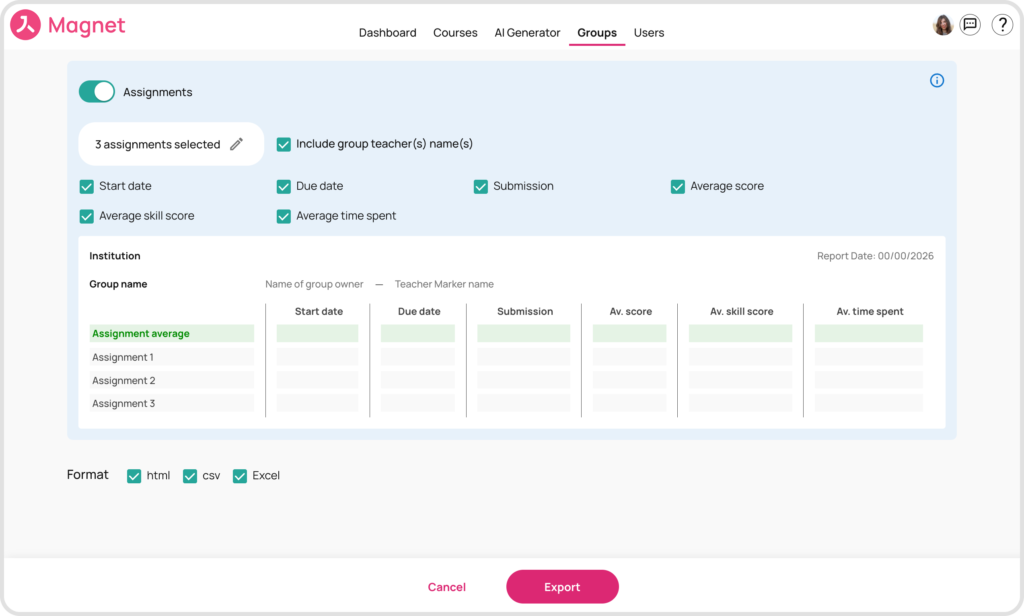
Assignment is Now Part of the Custom Report Builder.

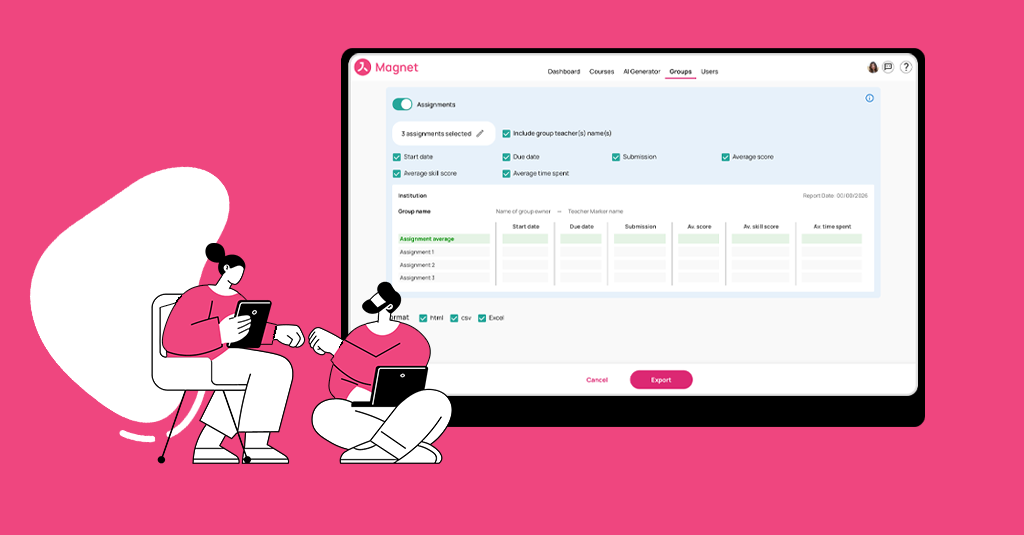
Avallain Magnet Release 38 extends the custom report builder introduced in Release 33 with the addition of Assignment reporting. A new toggle and dedicated section now allow teachers to enable Assignment reports for specific groups, making it easier to track and review learner performance.

The reporting page has also been enhanced with UI improvements that increase flexibility and prepare the system for the addition of further modules in future releases.

In addition, all course reports now automatically include the institution logo or name and the report date by default. 

Watch the webinar recording

Learn more about this release’s new features by watching the recording of the webinar held by our in-house experts.
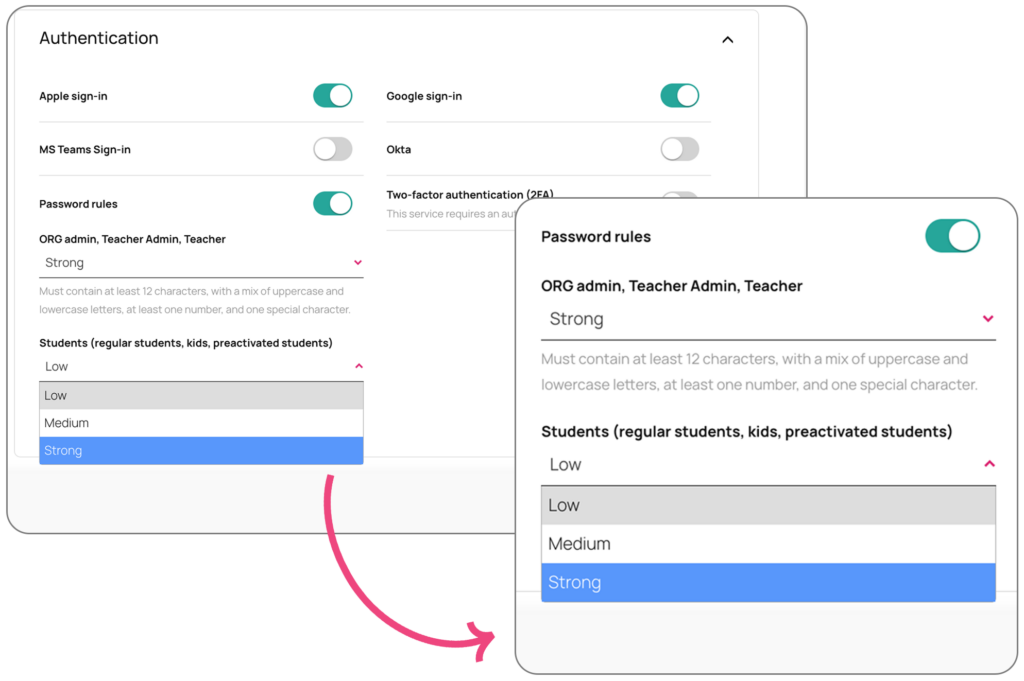
Image not found

Author Release 50

Avallain Author Release 50: Optimised PDF Digital Books, enhanced import workflows, GenAI & MosAIc updates and more.

Backend Enhancements

Digital books

Digital Book creation with Optimised PDF Workflow
Until Release 50, when creating a Digital Book, Avallain Author split PDFs into individual pages. This was time-consuming and often resulted in diminished image quality and the loss of accessibility data.

With Release 50, PDFs are no longer split. Imported PDFs remain as a single file. The process is faster, and there should be little or no impact on visual quality or accessibility.

Workflow changes

All Digital Books are now created using the Optimised PDF Workflow.

  • New ZIP books: Users can still create books using ZIP files, either PDF or JPG.
  • Existing books: Digital Books created before Release 50 (split PDFs, ZIP PDFs or JPGs) can still be edited or updated via ZIP uploads.

New Optimised PDF workflow books (single-file PDF books created after Release 50) cannot be updated using ZIP uploads. To make updates such as page deletion or text changes, the entire PDF must be re-imported.

Solution pages
There is no change to solution pages. Customers can continue uploading solution pages as individual PDFs in a ZIP, using the correct naming convention.

Delete page button behaviour

If the book is reimported using the Optimised PDF workflow, the button becomes disabled (except for solution pages)

New books (Optimised PDF Workflow)

  • Delete page button is disabled for normal pages
  • Delete page button remains enabled for solution pages

Old books (split files)

  • Delete page button remains fully functional
  • If the book is reimported using the Optimised PDF workflow, the button becomes disabled (except for solution pages)

UI enhancements

Content file section
A new section displays the current book file, allows updates via a pencil icon, and provides a history of import logs. This functionality was previously located under the book name.

Editing – file import
As before, clicking Start replaces the button with a loading spinner until the import is complete. After completion, a new dismissible success notification appears in the Content section.

Book-type icons

  • Older JPEG books: Horizontal ZIP icon with “Content source” title
  • Older split-PDF or ZIP PDF books: Vertical ZIP icon with “Content source” title
  • New Optimised PDF workflow books: Document/file icon with uploaded file name, size and actual file title

Book-type indicators
For books created from JPEG ZIPs or split PDFs, a non-dismissible notice appears:

“Optimised PDF workflow is now available.
This book uses the older workflow. You can continue uploading ZIP files, or switch to the Optimised PDF workflow by reimporting the full book PDF for simpler maintenance.
After switching to the full PDF workflow, ZIP uploads will no longer be supported.”

The message is removed once the book is upgraded to the Optimised PDF format.

Upload behaviour – error messages

If a user attempts to upload a ZIP of page corrections to an Optimised PDF book, a dismissible error appears:

“This book uses the Optimised PDF workflow.
ZIP files with individual pages can’t be imported. Please upload a full book PDF instead.”

ZIP uploads for solution pages remain supported.

Default layout for Activity Types

Project Managers can now set a default layout for all Activity Types.

A new dropdown, Default layout, appears under the layout carousel and displays the layouts selected in the carousel. Selecting one assigns it as the default layout.

When a new activity is created, it is automatically assigned that layout.

The Apply button allows the default layout, or any other layout, to be applied to all or selected instances of the Activity Type.

The default layout selection applies across all Design Packs that contain a layout with the same name. If one or more Design Packs do not include a matching layout, activities using those Design Packs will not receive a default layout.

Layout selection behaviour in the carousel remains unchanged.

LO Import with hotspot linking and enhanced error handling

LO Import now supports importing Digital Books with Learning Objects linked via hotspots. Messaging is clearer and failed imports are handled more effectively.

As before, exports must use Scorm 1.2 W/O Assets with Include LO hotspots enabled.

LO hotspot handling

  • Include LO hotspots selected: The book and all linked LOs are exported and imported, preserving hotspot links.
  • Not selected: Linked LOs are not exported. On import, Avallain Author reports that a single random LO will be linked to all hotspots.

Pre-import dialog

The dialog has been simplified to show only:

  • Blockers (Red): errors that stop the import
  • Warnings (Orange): issues that allow the import to continue

When clicking Continue:

  • Separate progress counters are shown for Assets and LOs
  • Assets are imported first, then LOs one by one
  • Failed items are listed in a downloadable CSV with columns: Asset Name – Comment – LO Name – Comment
  • Individual asset or LO failures no longer block the overall import

Blocking errors (Red)

  • Activity Type missing
  • Digital Book DP missing
  • No LOI.xml
  • Invalid LOI.xml with assets
  • No valid layout

Warning messages (Orange)

  • DP not found
  • Layouts missing
  • LO hotspots missing
  • Shared Text disabled

Project Import enhancements

Project Import now aligns more closely with LO Import.

Key improvements:

Flexible matching

  • Activity Types matched by system name
  • Design Packs fall back to default LO DP and first listed Book DP

Books and hotspots included, including LO hotspots

Pre-import checks and dialog
Validates:

  • Required DPs
  • Required ATs
  • Metadata schema consistency
  • Option list differences

Progress and reporting

  • Real-time counters for Assets and LOs
  • Failed items exported to CSV with asset and LO details

Messaging

  • Red (blocking): missing ATs or DPs
  • Orange (warnings): option list differences or non-critical mismatches

Header Media enhancements

Audio playback can now be customised per activity.

When Customize playback per activity is enabled, each screen displays its own properties panel with:

  • Starting time (default 0)
  • Ending time (optional)
  • Max width and Autoplay (unchanged)

Audio plays only within the defined segment, and the scrub bar reflects the defined duration. Ending time supports milliseconds.

Transcripts display per activity screen and must match the defined audio segments.

History versions are not created when editing header media. If screens are moved or removed, manual review is required.

User report export

A Download CSV button has been added to the User page toolbar.

Report columns:

  • Username
  • First name
  • Last name
  • Email
  • Creation date
  • Expiry date
  • Status
  • Type
  • No. of assignments
  • Last login date

The number of rows matches the green counter value, which now includes unconfirmed users.

Options

Language-specific quote mark conversions
A new Global Option converts quote marks and apostrophes in CKEditor based on the Language Attribute (en, de, es, fr, it).

Supported languages: English, French, German, Spanish and Italian.

GenAI & MosAIc

Activity panel redesign
A new left-hand panel displays selections before confirming screen creation. Selected regions are enumerated and visually reflected on the page.

The creation flow remains unchanged and activity types can still be overridden.

PDF image support
MosAIc displays extracted images from the source PDF in a left-hand panel. Users can select one or more images from any page. Images are added to either the Content area or Supplements area, depending on layout.

Editing generated screens
Using Add from PDF, users can add images or make new selections from the source PDF using the same panel.

Preview

Recording beep override
The recording beep sound can now be overridden in all ATs and syntaxes using a recorder. Design Pack updates are required.

Persisted randomised answer order
Randomised answers now retain their order when reopening a partially completed or submitted LO. New attempts re-randomise as expected.

Mercury Design Packs

  • Improved support for table and cell properties
  • 01M layout now supports DP option “Size = S”
  • Improved line spacing in text gap activities
  • End Results Screen button moved to the primary footer

Accessibility enhancements

Mercury and Mercury Vertical

  • Expanded support across multiple activity types
  • Skip-link navigation
  • Consistent keyboard navigation within activity boxes
  • Improved bypass block handling

Watch the webinar recording

Learn more about this release’s new features by watching the recording of the webinar held by our in-house experts.
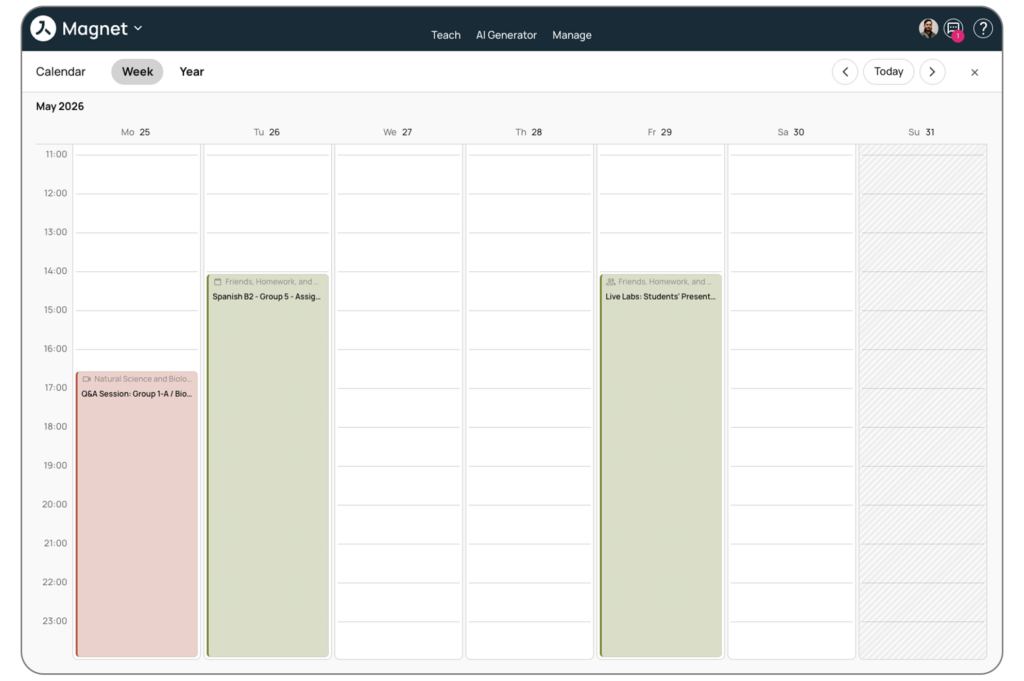
Image not found

Magnet Release 37

Advanced search, New Setting Options and More.

Avallain Magnet Release 37 introduces a new option for enhanced searching functionalities. This feature can be enabled in Settings at ORG level and provides more filter options, Learning Object preview and friendlier navigation for content search within Magnet Administration. 

New option to hide the skills in the course gradebook

This release includes a new setting that allows organisations to hide the skills associated with a course from the gradebook accessed either from a group dashboard or the course markbook tab.

New Activated Students Settings

Avallain Magnet Release 37 introduces a new settings option at ORG level (‚activated_students_enabled‘) and at institution level (‚Create Activated Students Account‘) that enables Teacher Admins to create student accounts in an active state, either in bulk via CSV upload or individually from the Users page, bypassing the standard email-based activation process.

The creation of active student accounts is possible for students with or without email addresses (using unique usernames or dummy email accounts), streamlining onboarding for schools that cannot use the regular account activation flow.

Watch the webinar recording

Learn more about this release’s new features by watching the recording of the webinar held by our in-house experts.
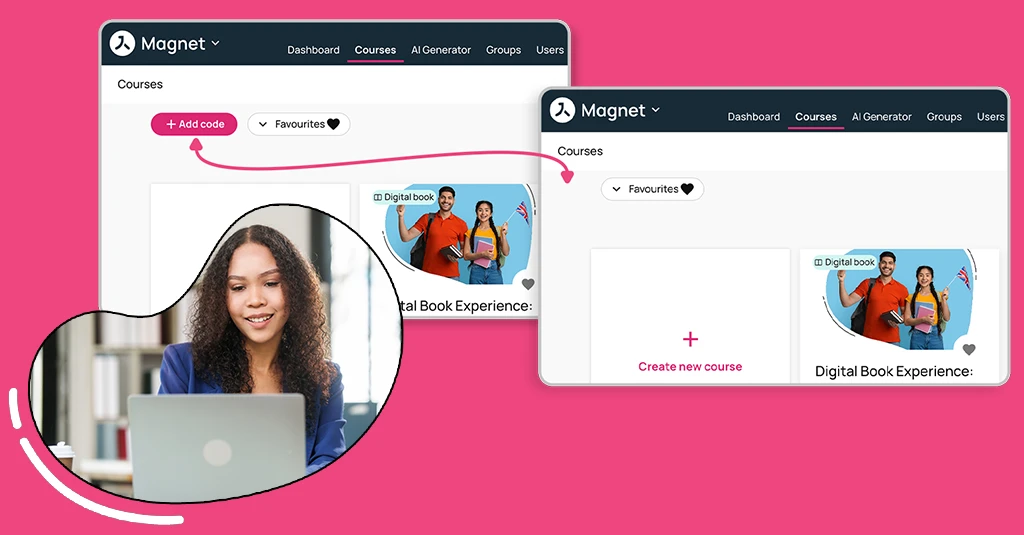
Image not found